
Each Team Member can manage their own individual profile. To access your profile, select the Expand icon next to your name in the lower left corner of the application. The User Profile menu includes:
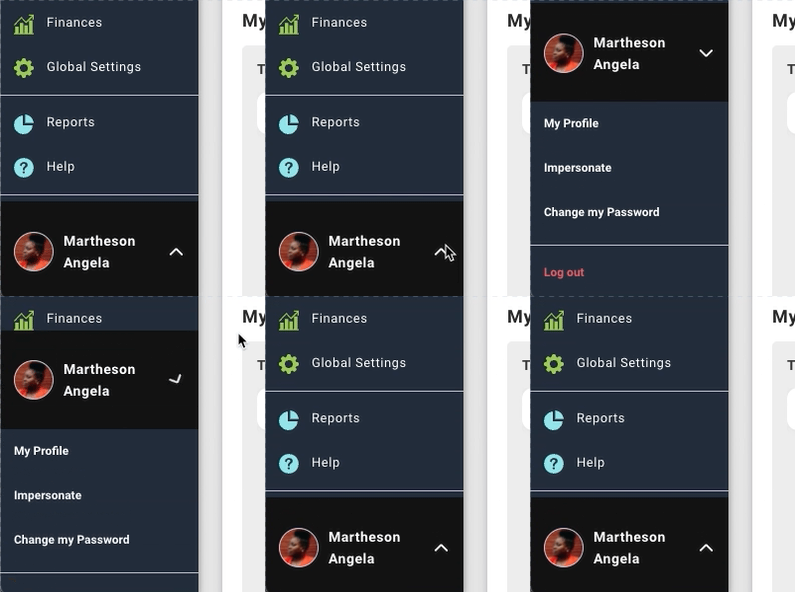
- My Profile
- Impersonate
- Available only for Administrators. Allows you to impersonate another Team Member. Change my Password
- Change My Password
- Log Out
My Profile
Selecting the My Profile menu allows you to manage your profile settings. Selecting the Edit icon provides you the opportunity to change your settings.
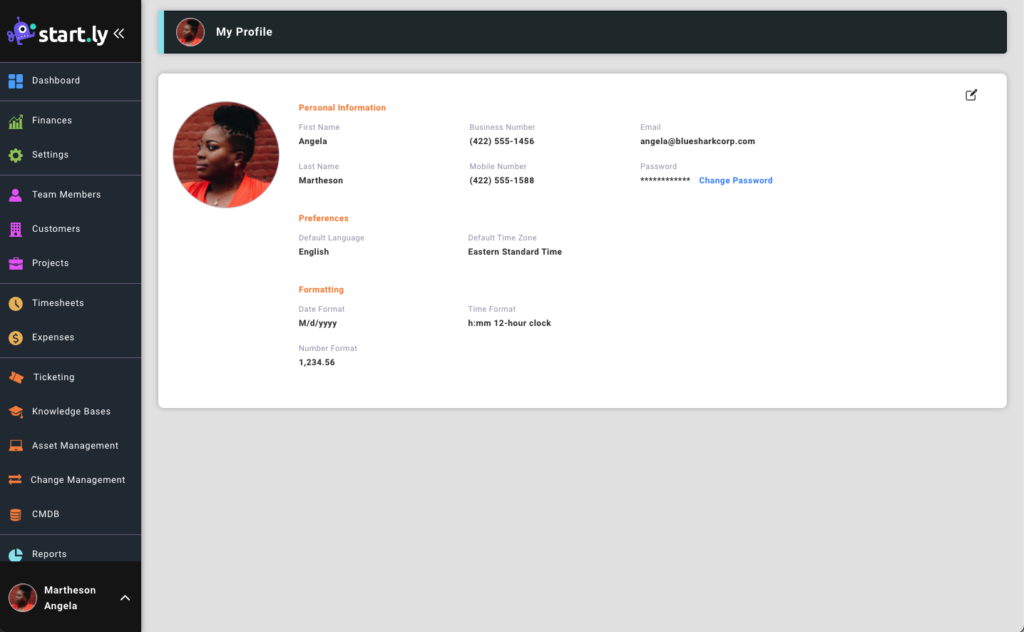
NOTE: Your email address is also your account log in credential and can only be changed by an Administrator.
Impersonate
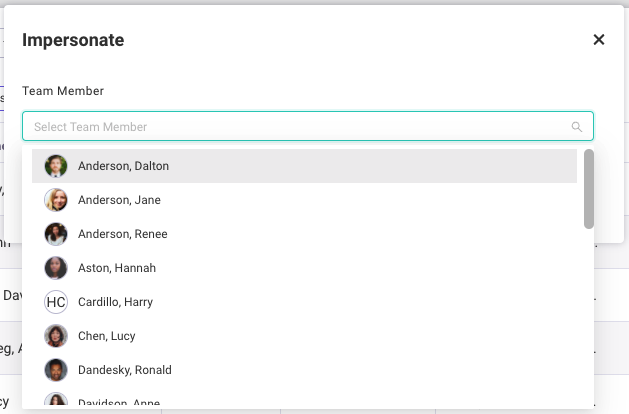
Impersonating another Team Member is a feature only available to Administrators. Impersonation allows an Administrator to perform all functions of the impersonated Team Member.
However, for auditing purposes, all changes made while impersonating another Team Member will still record the underlining Administrator’s credentials for that change.
Change my Password
The Change my Password menu displays the same Change Password dialog box as the Change password link from the My Profile screen.
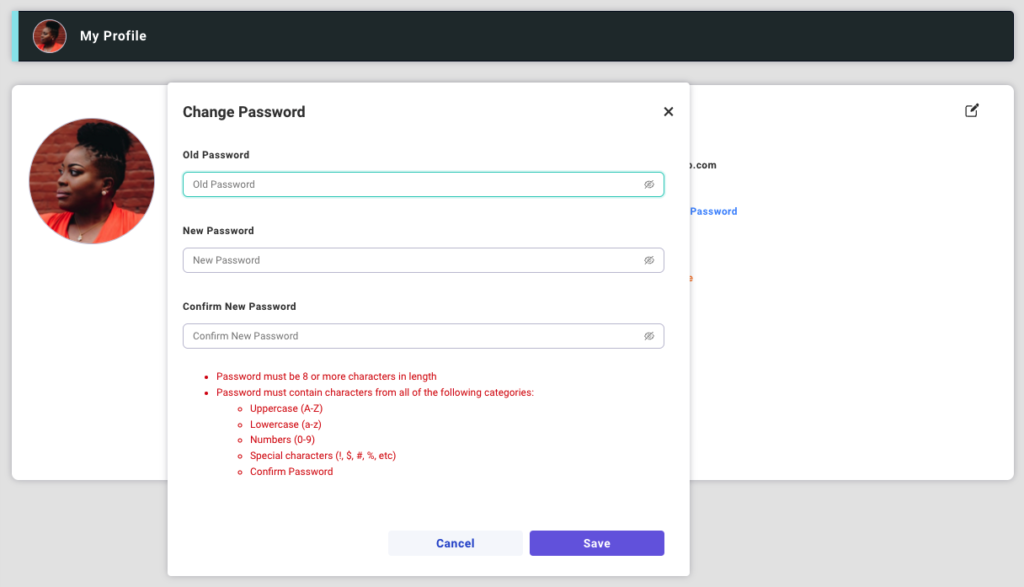
Password requirements include:
- Password must be at least 8 characters in length
- Password must contain characters from all of the following categories:
- Uppercase (A-Z)
- Lowercase (a-z)
- Numbers (0-9)
- Special characters (!, $, #, %, etc)