The SMS Template settings in Startly allow teams to create and manage reusable messages for communicating with end users directly from tickets. Within this setting, users can build both global templates for organization-wide use and customer-specific templates tailored to unique needs. These templates streamline common interactions—such as ticket updates, identity verification, and resolution instructions—ensuring consistent, efficient communication while reducing the need to type repetitive messages during support workflows.
List
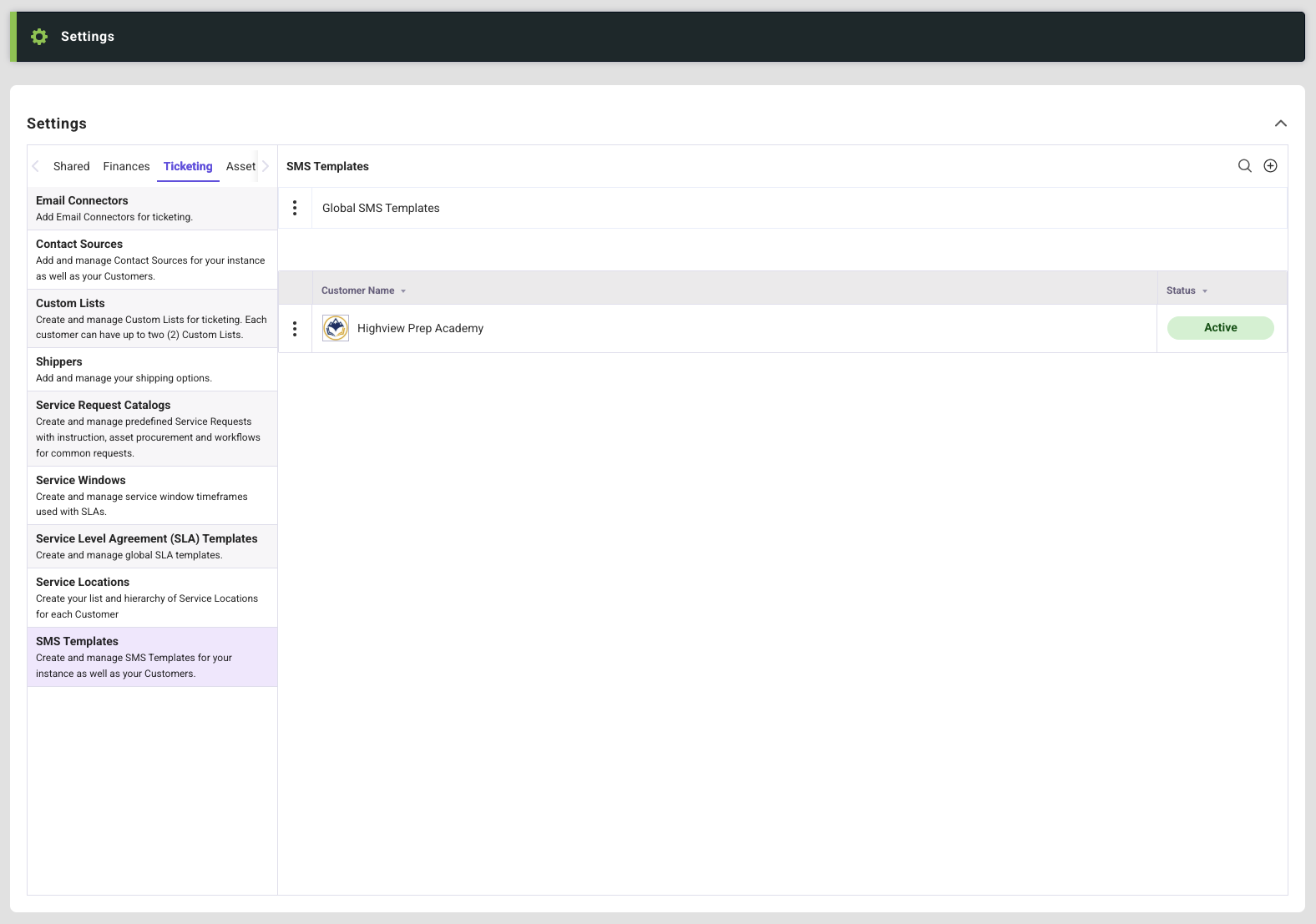
The list screen shows the Global SMS Template as well as any Customers that currently have customer specific SMS Templates created for use. The plus icon allows creation of a new template. Selecting the more icon on the customer or global line item will allow for management of templates.
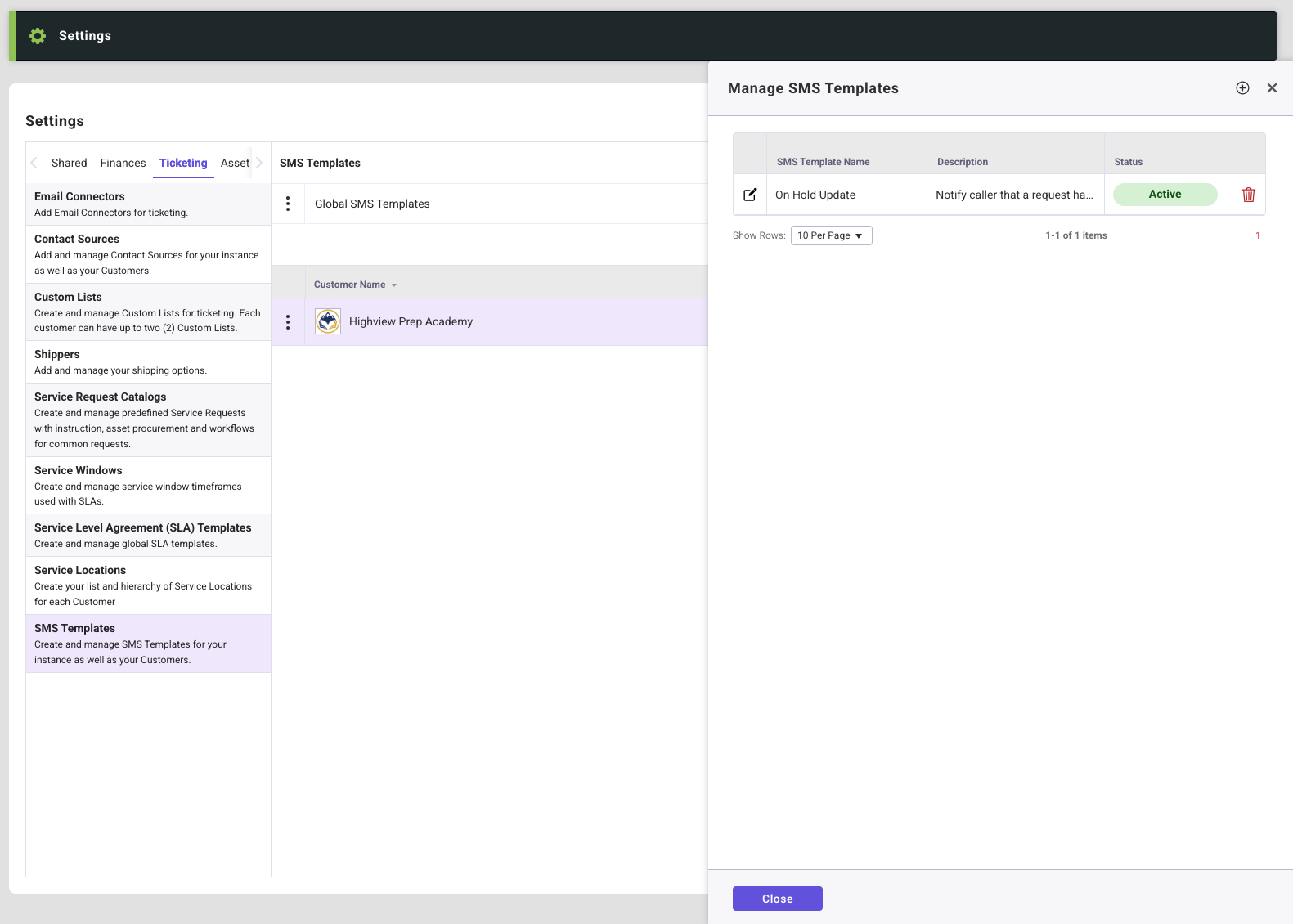
Manage SMS Templates
After selecting the more icon, a drawer opens with the list of templates created for the selected customer or the global templates available to everyone. Each template can be edited by selecting the edit icon for each row or deleted by selecting the trash icon.
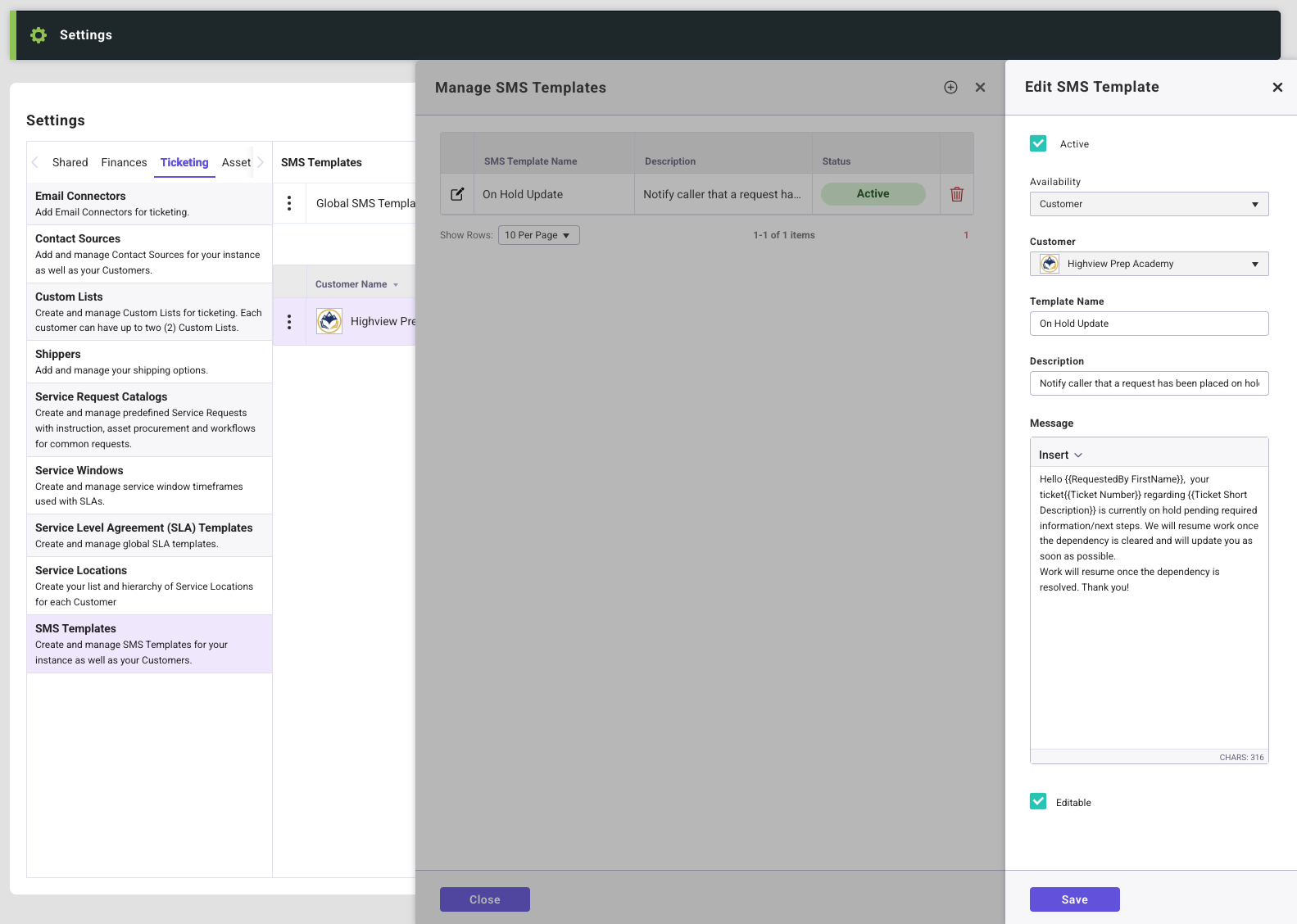
Create/Edit SMS Templates
Fields for each template:
- Active checkbox
- by default this will be checked making it active. Unchecking the box will make this template unavailable for that customer or globally depending on where the template lives.
- Availability
- Select if this will be a Global or a Customer specific template
- Customer
- Customer selection is required if the Availability is set to Customer
- Template Name
- give the template a name that is easily identifiable by fulfillers
- Description
- additional detail about the message
- Message
- Enter the message for use by fulfillers when working tickets.
- Insert provides the ability to pull in variable information from the ticket such as Requester Name, Ticket Number or Short Description.
- Editable checkbox
- by default this will be checked making the message editable when selected from the ticket detail page. Unchecking the box will not allow for fulfillers to edit or add anything to the text message.
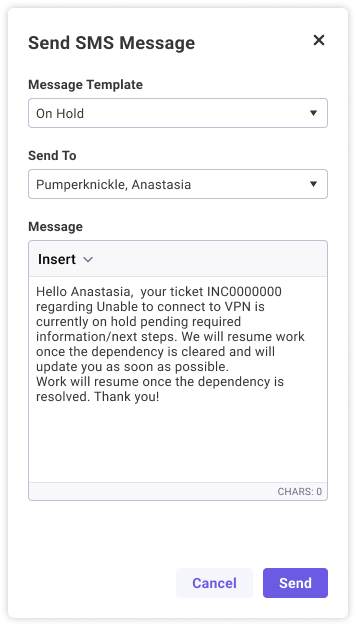
Sending a Message
SMS messages can be sent by clicking the texting icon on either the Requested By or Requested For card within the Ticket Details screen. From the message modal, fulfillers can choose to send a template or create a custom message. Selecting a custom message allows the fulfiller to enter any message they choose. When a template is selected, the message is automatically pre-populated with the template content and can only be edited if editing is enabled for that template.