Managing tickets is available to all Team Members who are assigned to a ticketing-enabled project, as well as all Team Members in an Assignment Group who are affiliated with the project.
The Ticketing menu provides access to the Ticketing List for a Team Member. By default, the Ticket list displays all open tickets for all projects that the Team Member is assigned too.
The Ticket list has 3 distinct views: List view, Tile view and SLA view. Change from one view to another via the 3 button toggle in the upper left corner. These views fulfillers, managers, and admins visualize data in ways that maximize productivity and ensure no customer requests are neglected.
Ticket List View
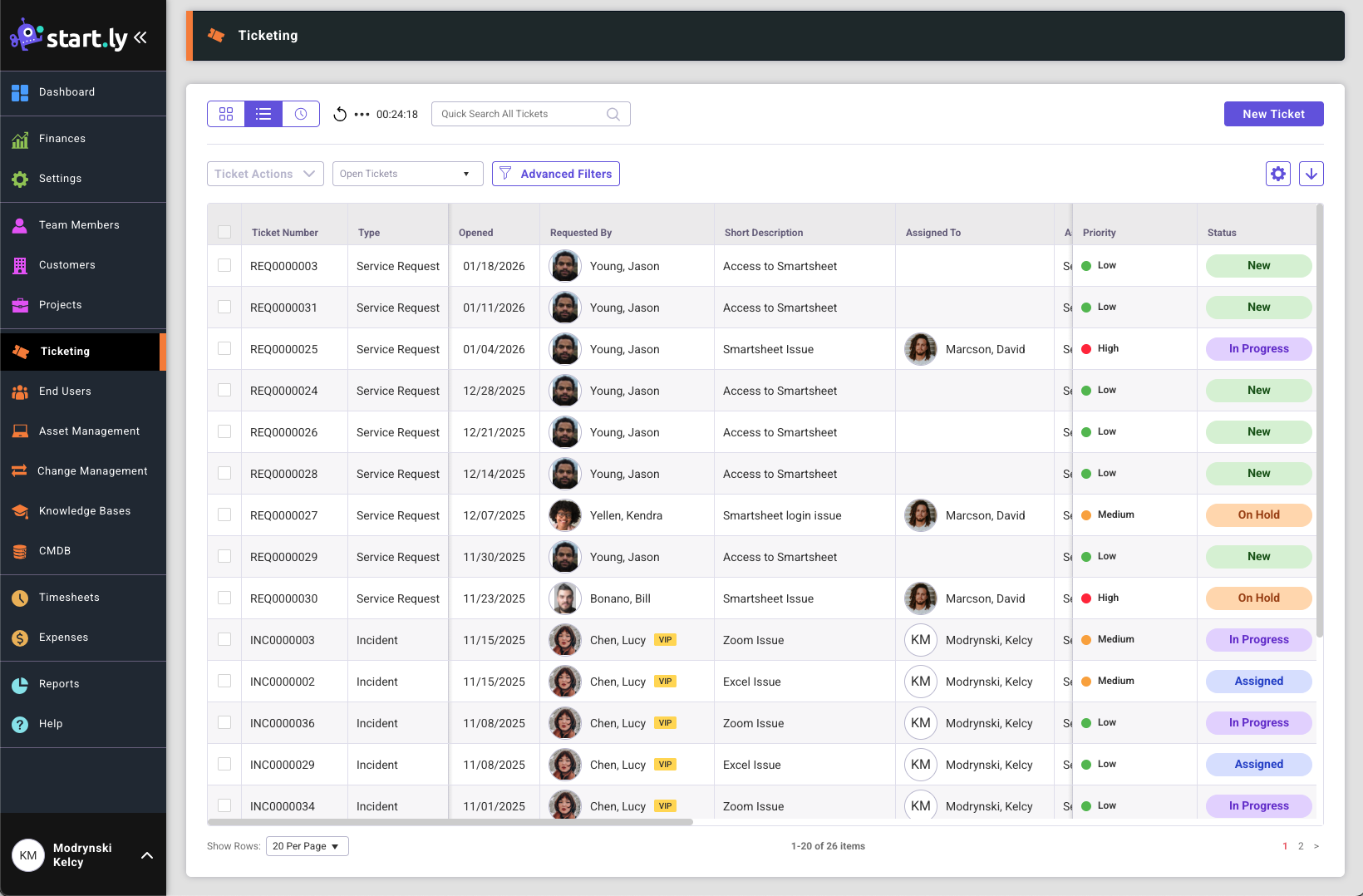
From the Ticket List view, users can
- Create a new ticket by selecting the New Ticket button in the upper right corner
- Open ticket details by selecting a row
- Search, filter and sort the tickets listed
Inline Editing from Ticket List View
Startly allows users to quickly update ticket details directly from the Ticket List using inline editing. This feature makes it easy to make small updates without opening the full ticket view.
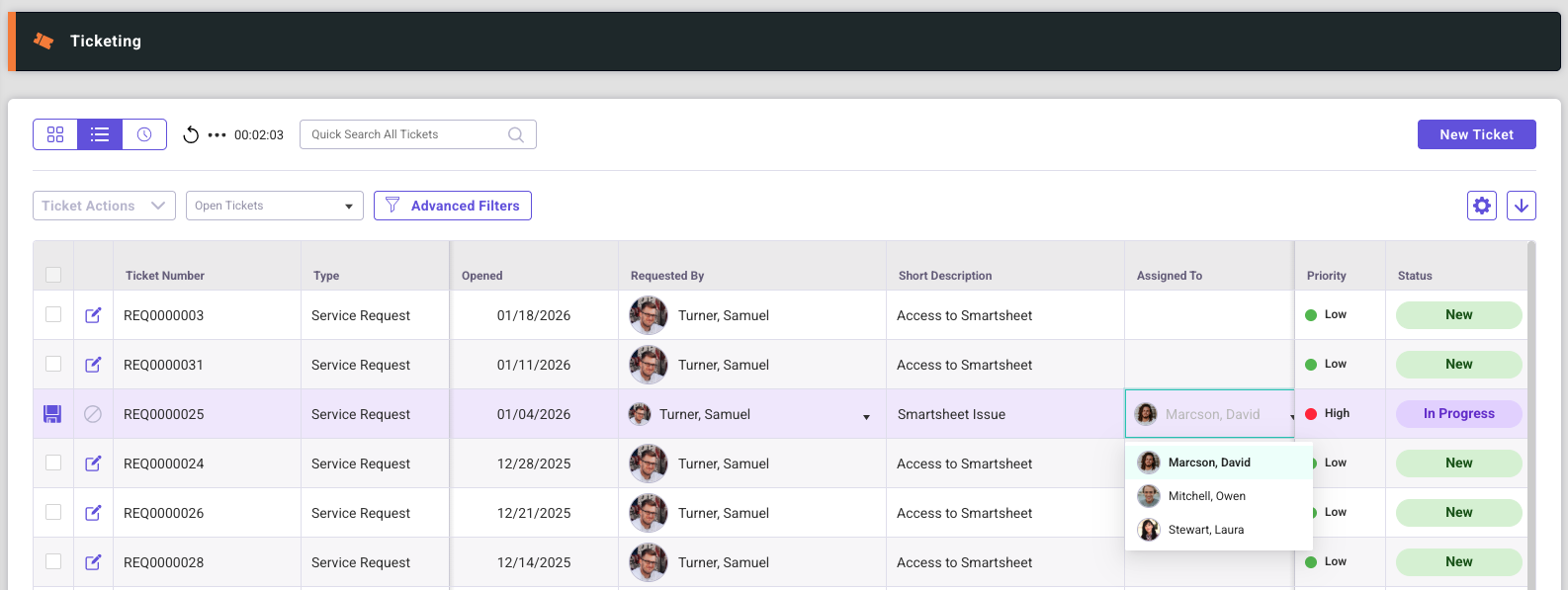
To begin editing a ticket row, select the Edit icon on the row you want to update. The row will switch into edit mode, and the fields that can be modified will be highlighted. These highlighted fields indicate which values are available for inline editing.
After making your changes, select the Save icon to apply and store the updates. If you decide not to keep your changes, select the Cancel icon to discard them and exit edit mode.
If you click outside of the row while in edit mode and changes have been made, Startly will prompt you to confirm whether you want to cancel your edits before closing the edit view.
Inline editing provides a quick and convenient way to update common ticket fields directly from the list without navigating away from the page.
Ticket Tile View
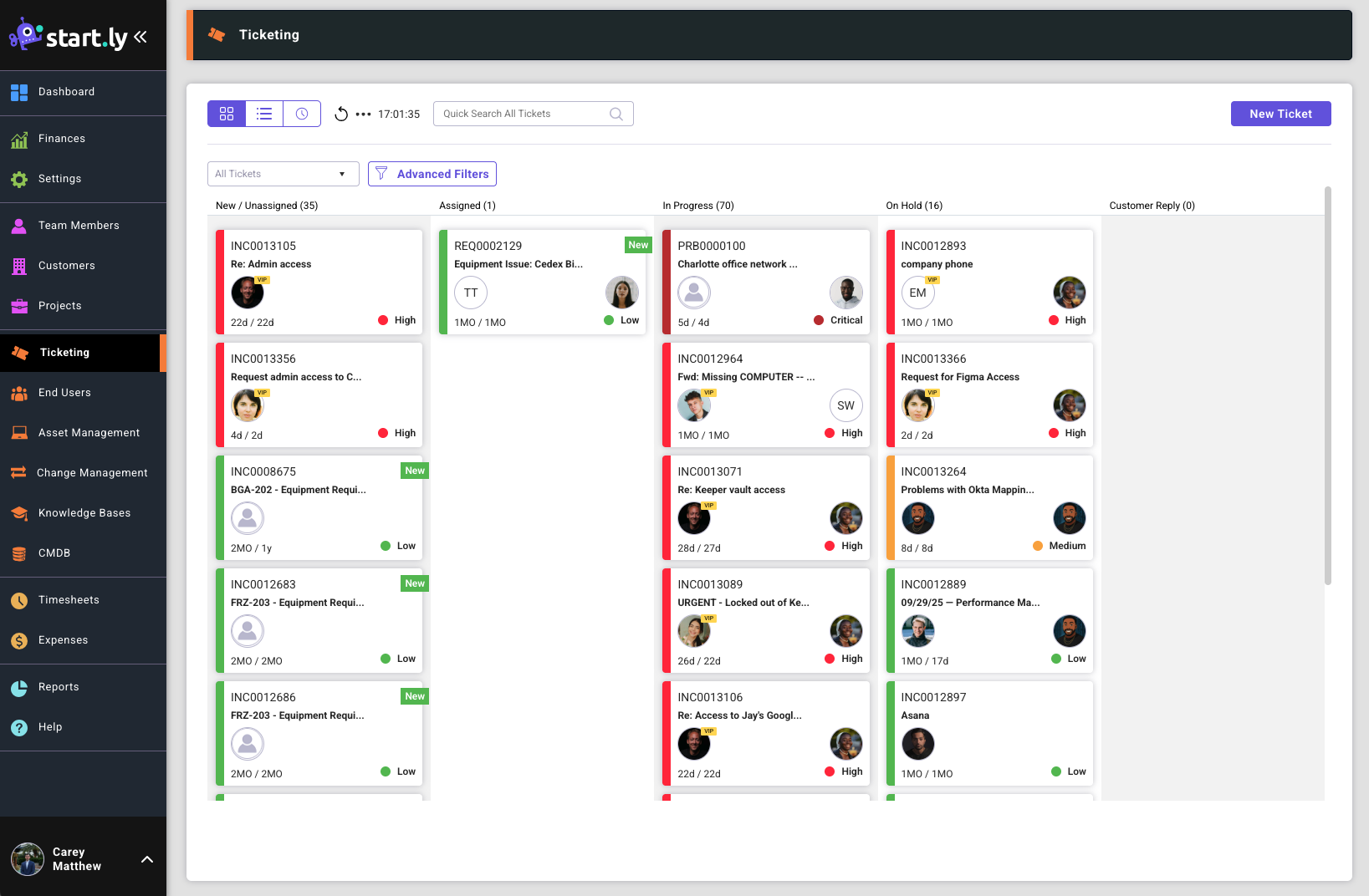
From the Ticket Tile view, users can
- Create a new ticket by selecting the New Ticket button in the upper right corner
- Open ticket details by selecting a tile
- Search and filter the tickets displayed
SLA List View
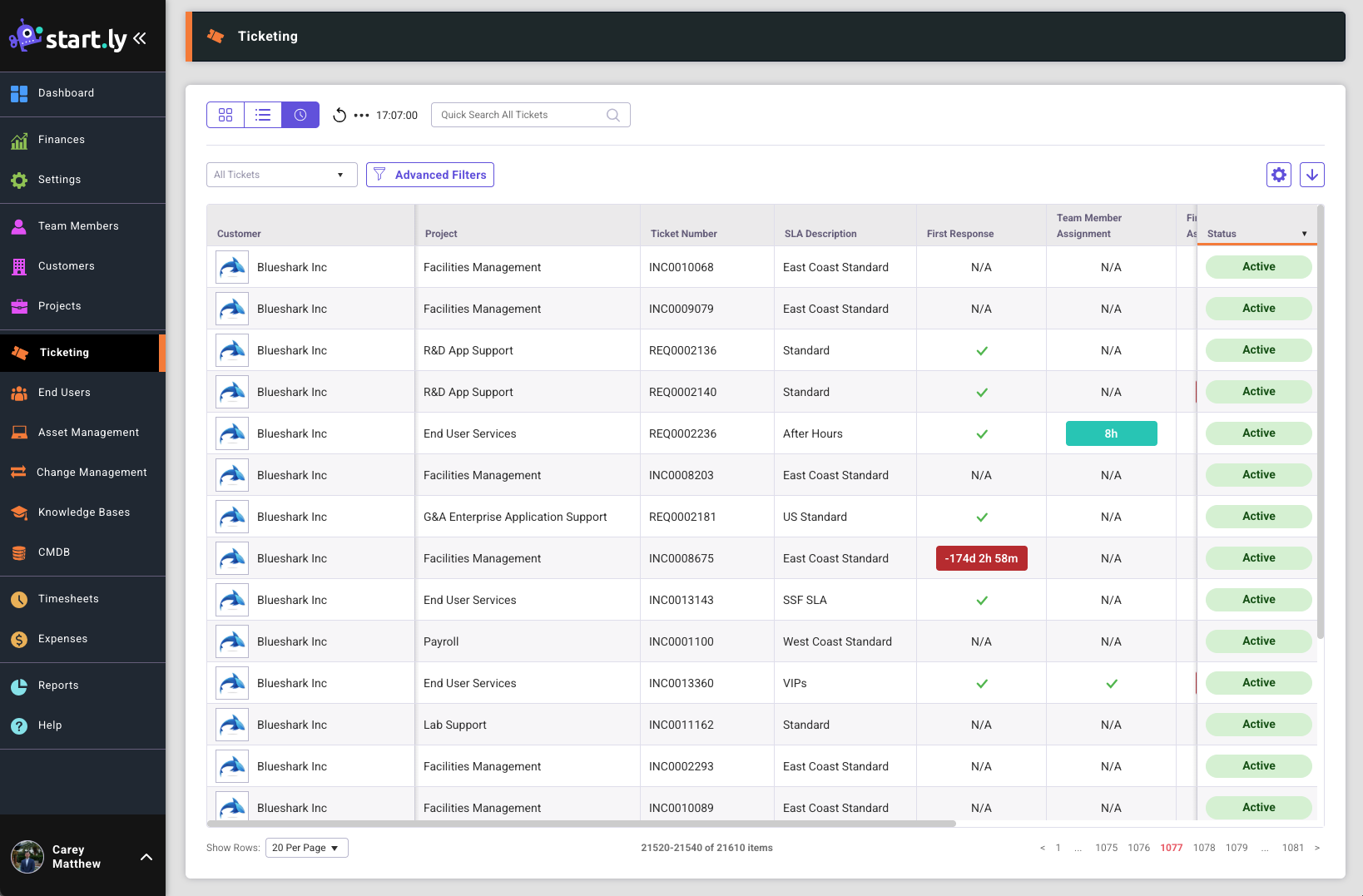
From the Ticket SLA list view, users can:
- Open ticket details by selecting a row
- Search, filter and sort SLAs for all tickets in the system
Quick Search
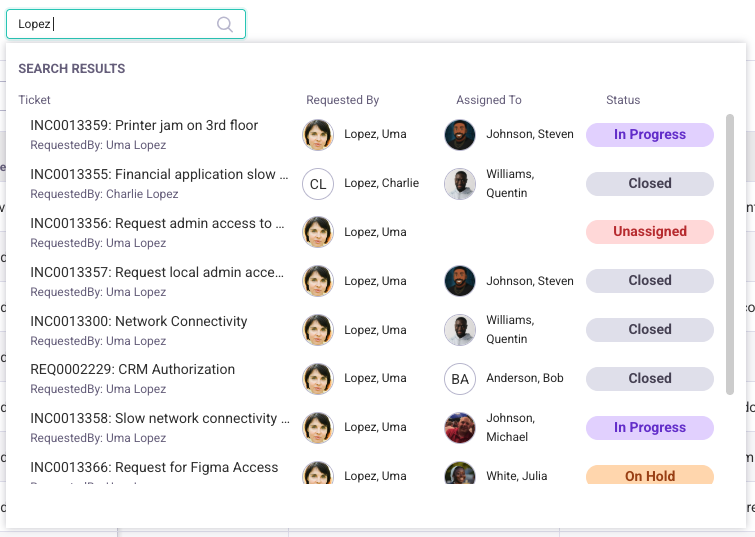
The quick search on the ticket list views is essential for maximizing productivity in a high-volume support environment. Users can enter a keyword, phrase or even a series of words to get an expected search result set. The search will look at All Tickets and is not impacted by the preloaded filtered views, saved search filters or advanced filters.
The results for a quick search are displayed by the most likely result first. Each result displays the Ticket Number, Short Description, Requested By, Assigned To, Status and a hint to which fields the search matched on. The more matches the higher the result will appear.
Ticket Actions
The Ticket Actions are only available on the Ticket List View. Ticket Actions are a way for fulfillers to take similar actions on multiple tickets at a time.
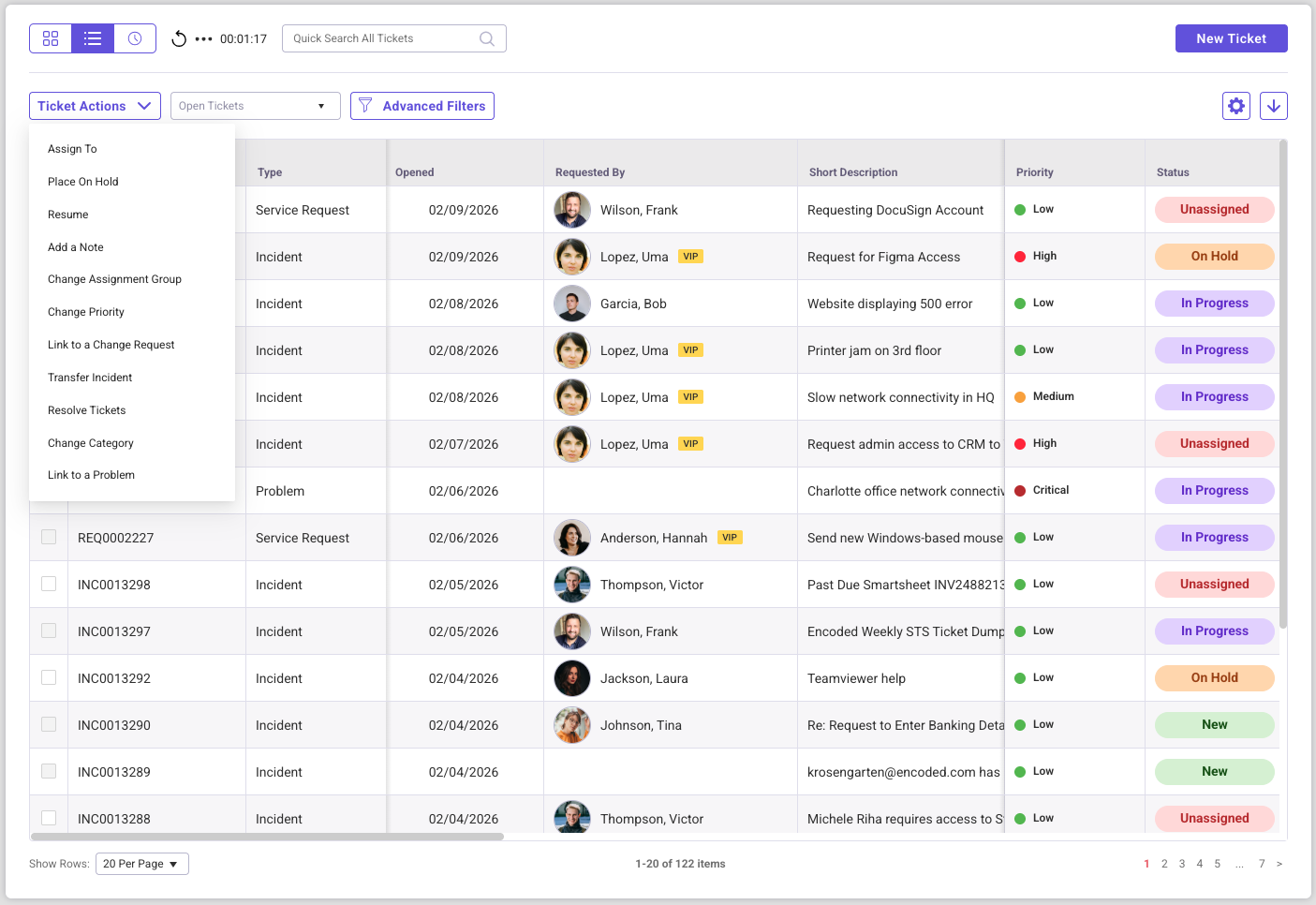
Rules when selecting tickets, after selecting the first ticket:
- Ticket type of the ticket makes all other ticket types inactive for multi select
- For example if an Incident is selected, all Service Requests and Problems will be inactive
- The project of the ticket makes all other tickets for other projects inactive
- Available actions may differ based on ticket type
- Actions may be inactive based on additional criteria in the multi selected tickets
- Closed tickets cannot be selected.
Preloaded and Saved Filters
Previously labeled “Display Tickets”. These filters provide a quick way for users to narrow results based on a number of helpful quick filters. This is the initial filter for the displayed list, tiles or SLAs, initially the display is set to All Tickets. Any new selection will persist until changed. The list of preloaded filters include:
- All Tickets
- My Tickets
- My Group Tickets
- Unassigned Tickets
- Open Tickets
- Resolved Tickets
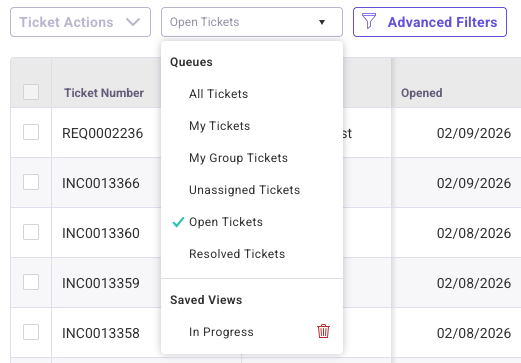
These quick filters are also applied and available when using the Advanced Filter.
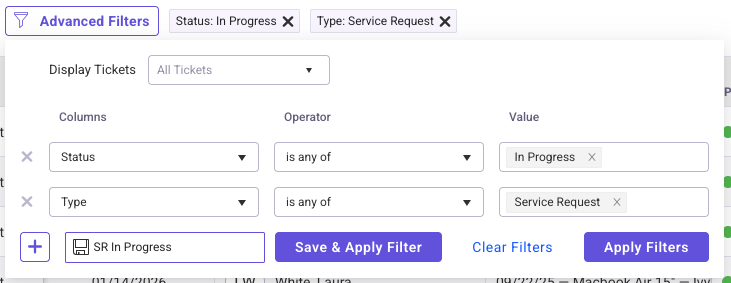
Users can create custom filters and save them for future use. After creating an Advanced Filter, select the Save Icon, name the filter and save. This filter is added to the bottom of the Preloaded and Saved Filter drop down. Users can select their saved filters and even use them to build additional advanced filters.
Advanced Filters
The Ticket List Filter allows the ability to quickly search and find what you are looking for. Filter by any available column in the Ticket List, select an operator and enter or select a value to complete your query. The Ticket List Filter also allows for complex filtering by adding additional queries to the search.
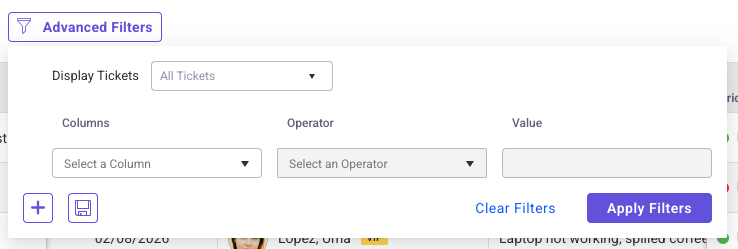
Filter Operators
Filter operators specify how the column selected and value relate to each other in a search query. There are 4 types of operators: text, number, date and multi-select. Each type has a unique grouping of operators as seen below.
Text Operators
- contains
- does not contain
- equals
- does not equal
- begins with
- ends with
- is empty
- is not empty
- is any of
- is not any of
Number Operators
- greater than
- less than
- greater than or equal to
- less than or equal to
- equal to
- not equal to
- is empty
- is not empty
Date Operators
- is on
- is not on
- is after
- is on or after
- is before
- is on or before
- is empty
- is not empty
Multi-Select Operators
- is any of
- is not any of
Saving Filters
A Ticket List Filter can be saved for repeated use. Enter your search query, then select the save button to enter a name for the search, then select Save & Apply Filter.