New Tickets
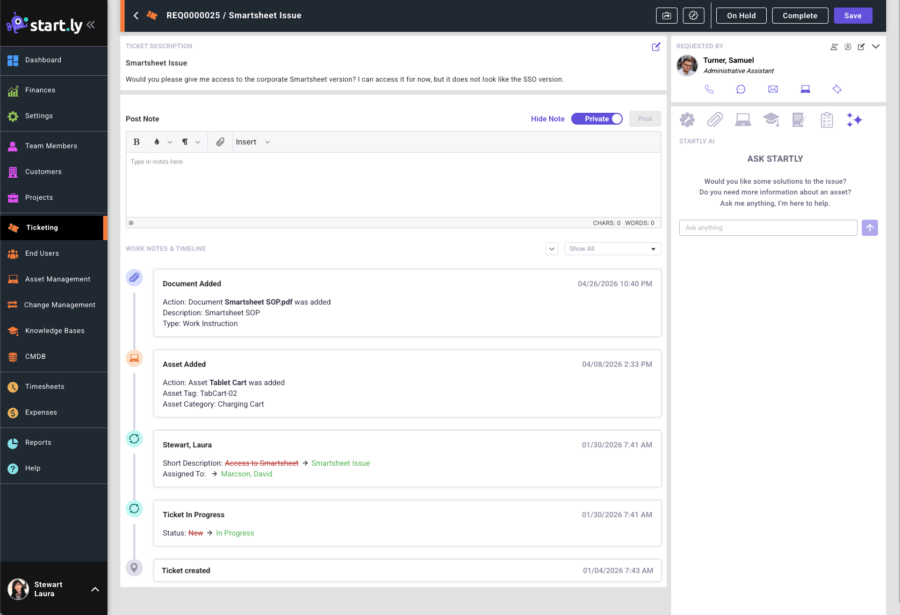
Ticket Header Bar
The ticket header is home to to the ticket number, short description and a few buttons that may change based on the ticket type. Those buttons are:

- Transfer Project
- Allows for the ticket to be moved to another project within the same customer.
- Select a new project and assignment group to transfer this ticket to.
- Convert to Incident
- If the ticket is originally defined as a service request and needs to switch to an incident.
- The original service request will be closed, and. a new ticket will be created as an incident.
- Convert to Service Request
- If the ticket is originally defined as an incident and needs to switch to a service request.
- The original incident will be closed, and. a new ticket will be created as a service request.
- On Hold
- Place a ticket On Hold and select an On Hold Reason
- Resume
- Move a ticket from On Hold to In Progress
- Resolve (Incidents)
- Select to Resolve the ticket
- Additional data is required when resolving a ticket:
- Select a Resolution Code from the options provided
- Select who resolved the ticket. By default, the current fulfiller will be selected.
- Select a Resolution Date and Time. By default, the current date and time will be selected.
- Additional comments can be added, not required.
- Select if the ticket was resolved on first contact
- Choose to close the incident on resolution
- Complete (Service Requests)
- Select to Complete the ticket
- Additional data is required when completing a ticket:
- Select a Completion Code from the options provided
- Select who completed the ticket. By default, the current fulfiller will be selected.
- Select a Completion Date and Time. By default, the current date and time will be selected.
- Additional comments can be added, not required.
- Choose to close the service request on completion
- Complete (Problems)
- Select to Complete the ticket
- Additional data is required when completing a ticket:
- Select a Closure Code from the options provided
- Select who closed the ticket. By default, the current fulfiller will be selected.
- Select a Closure Date and Time. By default, the current date and time will be selected.
- Additional comments can be added, not required.
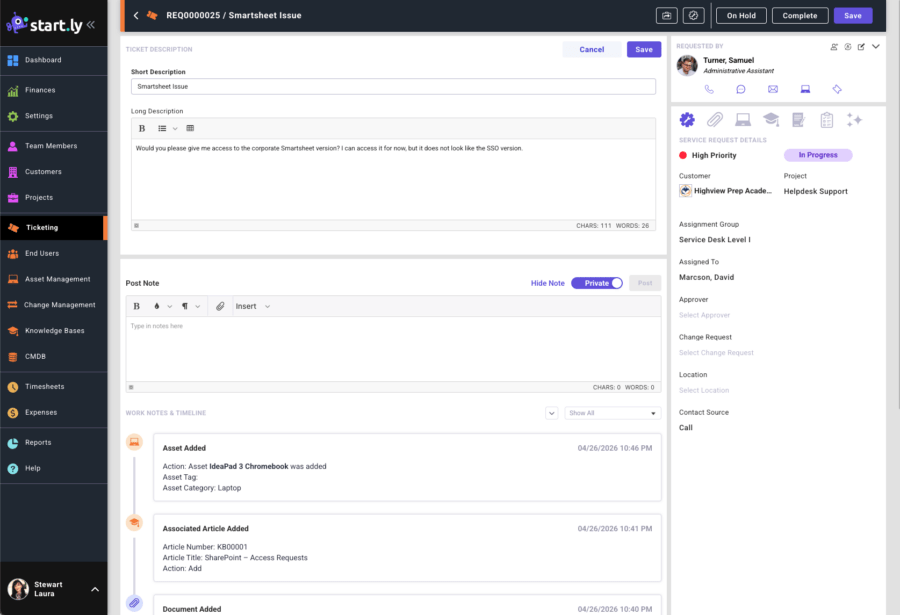
Ticket Description
The ticket description area of the ticket details screen is home to the Short Description and the Long Description. These descriptions can be edited by selecting the edit icon in the upper right corner. For tickets that are steps in a service request workflow the ticket description is also home to additional instructions which can be added during the workflow process.
Requested By
The Requested By card is home to the details of the requester/caller. This card has multiple links to information about the requester, including:
- Phone Icon
- Hover state shows available numbers for the requester/caller
- If the customer has a VOIP integration, the numbers when selected will initiate a call through the VOIP system
- If no number exists for the requester, the icon will be hidden.
- Message Icon
- If the requester has a mobile number SMS messaging is available
- To keep messaging consistent across fulfillers, SMS templates can be created in Settings / Ticketing.
- Email Icon
- Send an email to the requester
- Assets Icon
- View all assets assigned to the requester
- Add assets from the requester or from inventory to take action on: assign, return, retire, repair.
- If RMM is enabled, assets that can be managed via RMM will have an icon to launch a session.
- Ticket Icon
- The ticket history for this requester will open in a new browser tab.
Requested For
The Requested For card is home to the details of the end user for which this request was made for. This card has multiple links to information about the end user, including:
- Phone Icon
- Hover state shows available numbers for the requested for end user
- If the customer has a VOIP integration, the numbers when selected will initiate a call through the VOIP system
- If no number exists for the requester, the icon will be hidden.
- Message Icon
- If the requested for has a mobile number SMS messaging is available
- To keep messaging consistent across fulfillers, SMS templates can be created in Settings / Ticketing.
- Email Icon
- Send an email to the requested for
- Assets Icon
- View all assets assigned to the requested for end user
- Add assets from the requested for or from inventory to take action on: assign, return, retire, repair.
- If RMM is enabled, assets that can be managed via RMM will have an icon to launch a session.
- Ticket Icon
- The ticket history for this requester will open in a new browser tab.
Post Note
While working a ticket the Post Note section is used to add ongoing notes, feedback and commentary through the fulfillment process. The note is a rich text editor that will allow for formatting as well as attachments. The Post Note section can be hidden to increase the viewing area of the Work Notes and Timeline section if desired.
Work Notes and Timeline
The Work Notes and Timeline is a living audit log of the actions taken on this ticket, things like; status updates, posted notes, added assets, linked articles, emails and messages. This section is displayed most recent on top by default. Additional view options are available based on work note type.
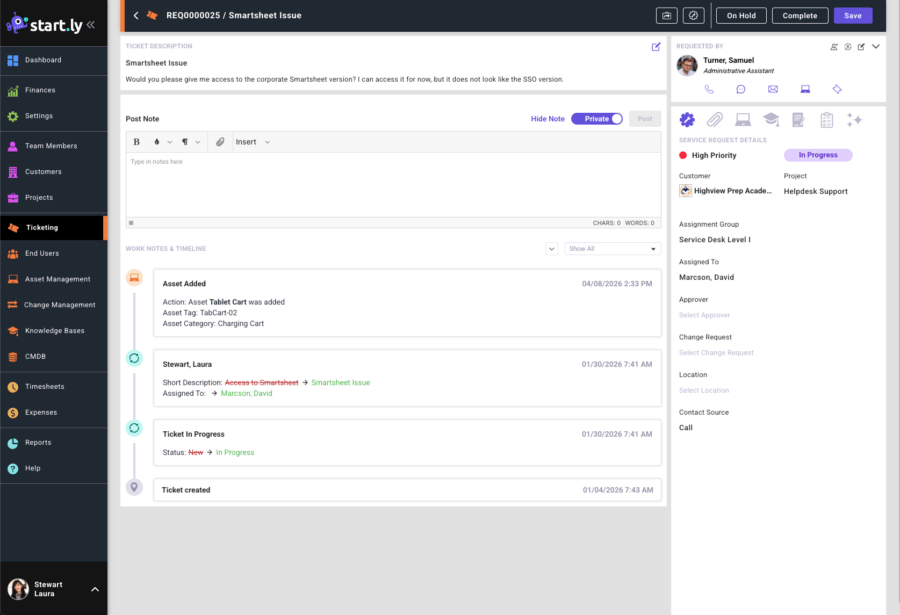
Details Card
Incident/Service Request/Problem Details Tab
Find all the critical details regarding this specific ticket on this tab. Fields are editable by simply selecting the data point and editing. This tab is shown initially by default.
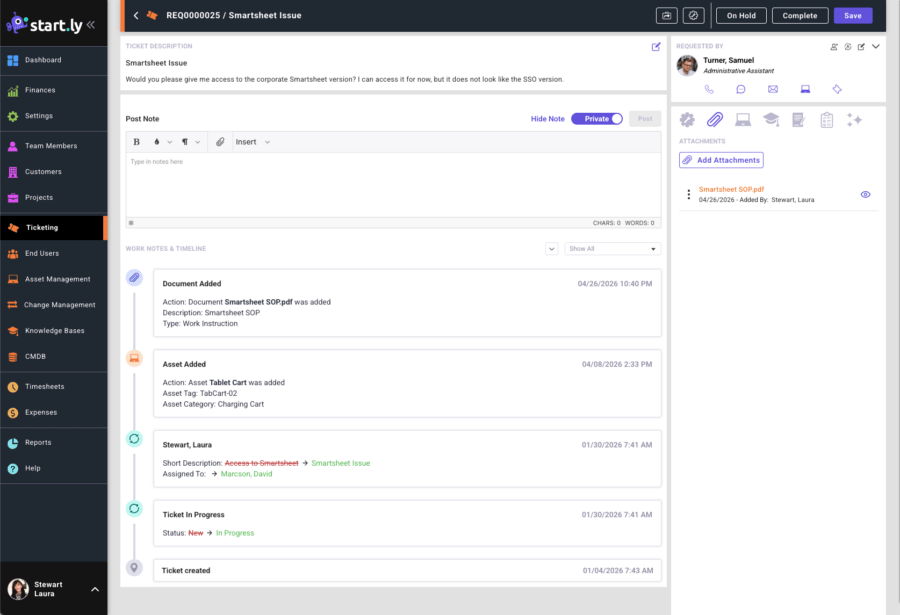
Attachments Tab
All documents, or images that are attached via an email, a posted note or attached from this tab are stored here. Each attached item can be viewed edited or removed via the more icon. A quick view icon is also available for each attachment.
Associated Assets Tab
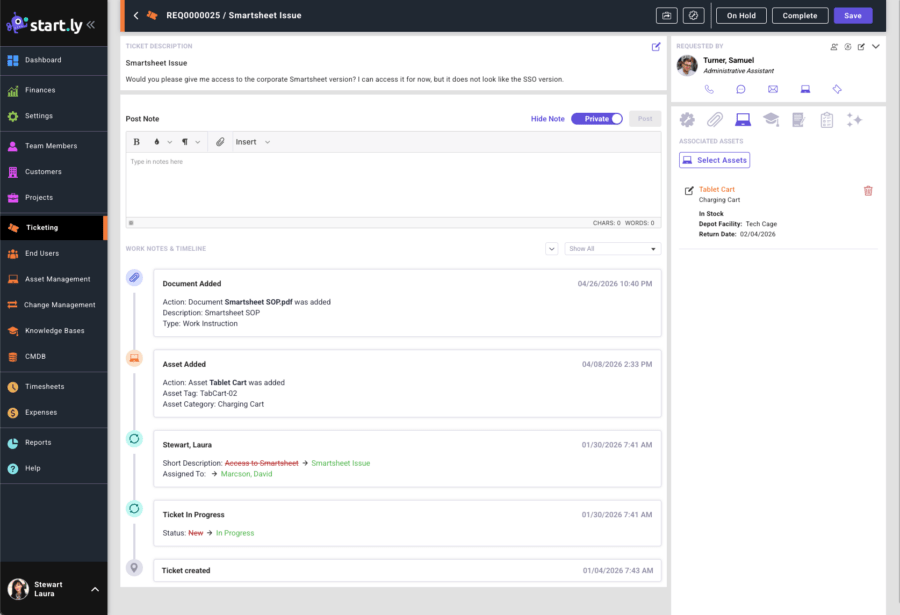
The Associated Assets tab is home to any assets (assigned or in inventory) that may require assignment, repair, shipment or an update based on this particular ticket request. Add assets by selecting assets from inventory or from the requested by. After selecting the asset(s) the fulfiller can add notes to each asset added and take the appropriate action based on the request.
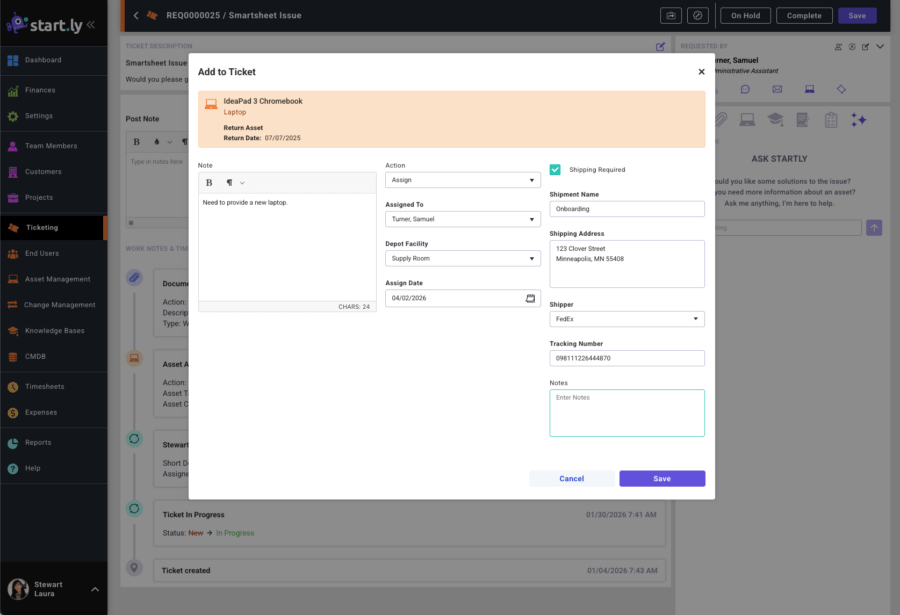
Potential Actions:
- Assign
- Select the assign to
- Select a Depot Facility to pull the asset from
- Add an Assignment Date
- If the item needs to be shipped, select shipping required and enter the shipping information.
- Return
- Select a Depot Facility to return the asset to
- Add a Return Date
- If the item needs to be shipped back to a depot facility enter shipping information.
- Repair
- Add a Repair Date
- If the item needs to be shipped back to a depot facility or a vendor select shipping required and enter shipping information.
- Retire
- Add a Retire Date
- If the item needs to be shipped back to a depot facility select shipping required and enter shipping information.
Linked Knowledge Base Articles Tab
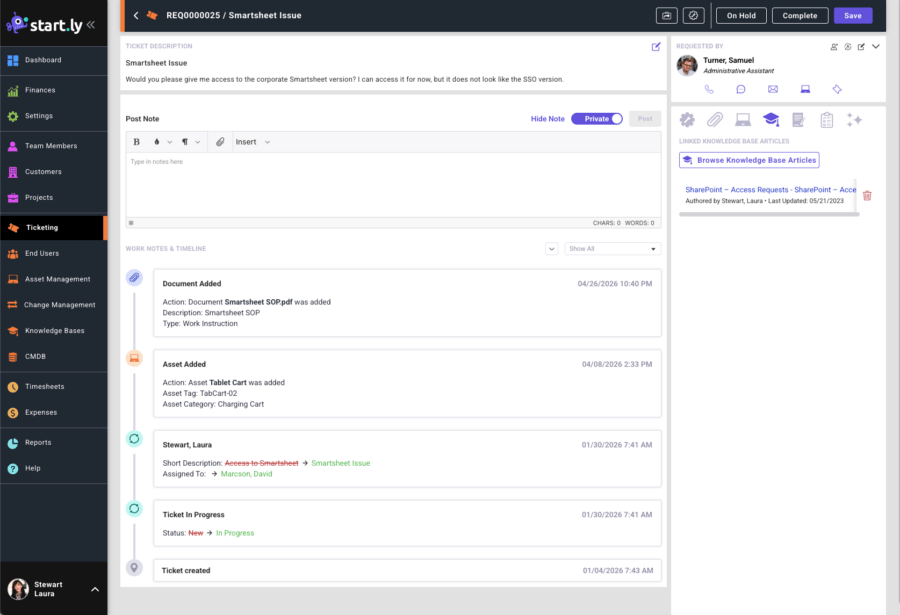
Browse your custom knowledge base in Startly right from the ticket. Find the article with the information needed to help resolve the issue and link it to the ticket. All linked articles will live on the Linked Knowledge Base Articles tab. When articles are linked, a new entry will be added to the Timeline.
SLAs (Service Level Agreements) Tab
Any SLAs for this ticket can be viewed on the SLAs tab. Each SLA will be listed with all active and expired timers giving visibility to a fulfiller that they are meeting the agreed upon service level agreements.
Surveys Tab
If the project associated with this ticket has a survey this tab will be present. When the ticket is resolved a survey is sent to the requested by for submission. When the survey is submitted it is shown on this tab. Selecting the survey icon of a submitted survey will display the survey responses. When a survey is in sent status it can be resent by selecting the resend icon.
Configuration Items Tab (only available on Problem Tickets)
The Configuration Items tab is home to any items that are experiencing a problem and may require repair or an update based on the description of the request. Add items from the existing library of configuration Items. After selecting the item(s) the fulfiller can view details about the item or its relationship map to determine any additional items that may be affected.
Startly AI Tab
Fulfillers can utilize Startly AI to assist in finding documentation or proposing options for resolution to a ticket. Startly AI is a conversation based tool, simply ask a question to get a response. The more specific and detailed the question will allow Startly AI to be more specific and supportive in its response.